xMetaVar Tutorial
A step-by-step guide to analyzing your metagenomic variant data from start to finish.
Introduction
Welcome to the xMetaVar tutorial. This guide walks you through the full workflow — from uploading your raw data to exploring interactive visualizations. You’ll learn the required file formats, how to set analysis parameters, and how to interpret results to uncover meaningful insights.
Variant Calling
In this section, you'll perform variant calling — detecting genetic variations from your uploaded data. We’ll guide you through uploading files, selecting tools and parameters, running the analysis, and reviewing the results.
Prerequisites
Step 1: Upload Data
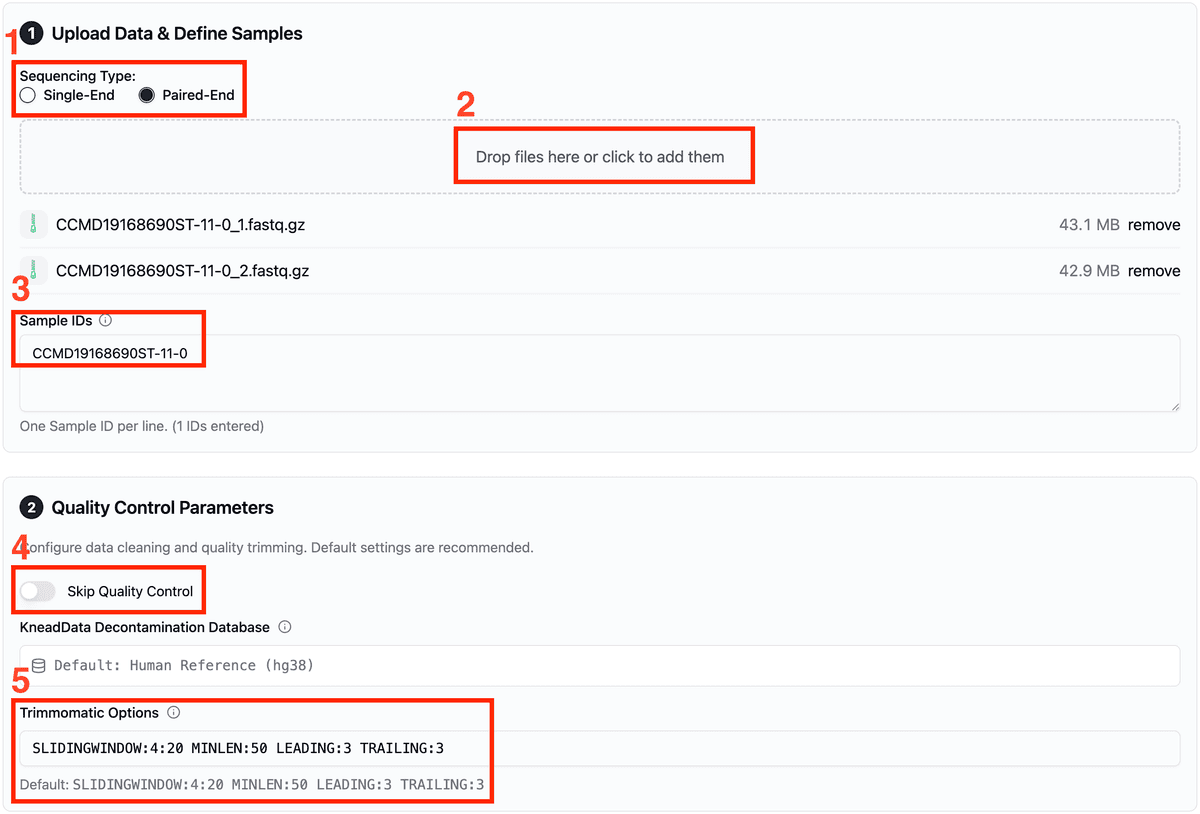
Begin by providing your sequencing data and setting up initial quality control.
Quick Start Guide
Navigate to Variant Calling and select the sequencing type (e.g., Paired-End).
Upload your raw sequencing data (FASTQ files).
Enter the corresponding Sample IDs in the text area, one per line.
Choose whether to Skip QC. If not skipped, configure Trimmomatic parameters.
Detailed Information & Parameters
Step 2: Configure Tools
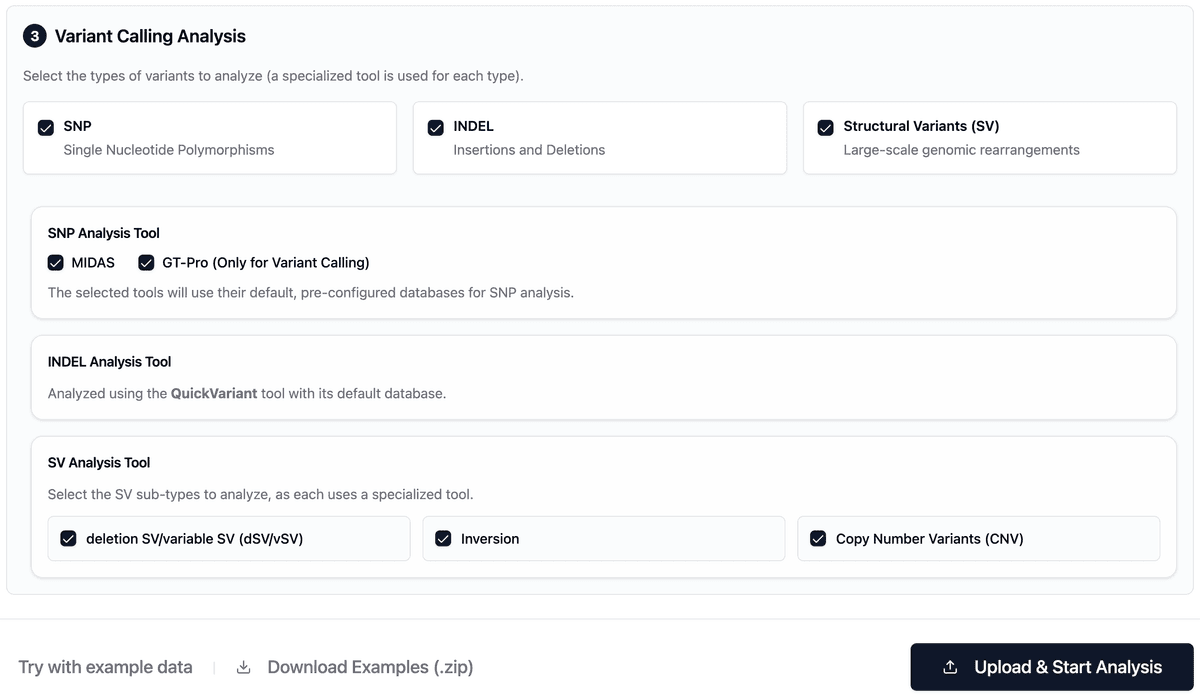
Configure the analysis pipeline by selecting the desired variant types and their corresponding detection tools.
Quick Start Guide
Select Variant Types
Begin by choosing the types of variants you wish to identify. You can select multiple options.
Configure SNP Calling
For SNP identification, select one of the available tools.
Configure INDEL Calling
QuickVariants is used for INDEL detection. This tool is selected by default.
Configure Structural Variant (SV) Calling
Select the specific types of Structural Variants to call. Each type is identified by a specialized tool.
About the Analysis Tools
MIDAS, GT-Pro, SGVFinder, and others, please visit the About Page for detailed descriptions and methodologies.Step 3: Monitor and Review Results
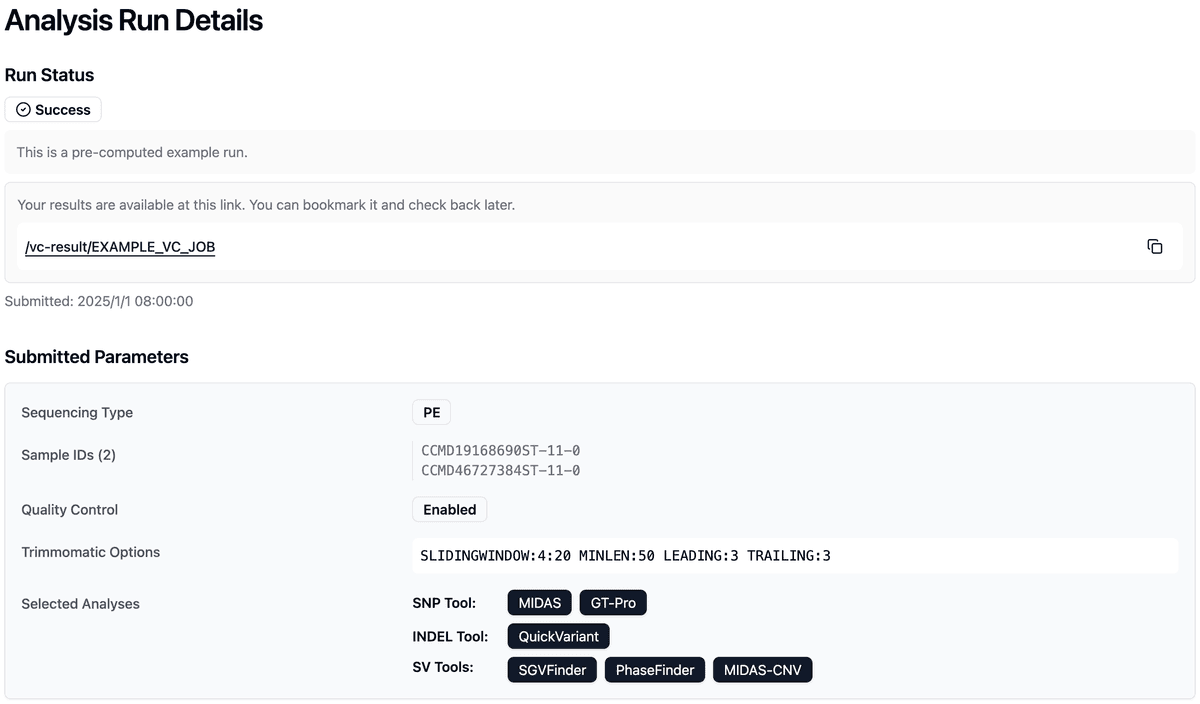
After submitting a job, you will be automatically redirected to the results page to monitor its progress in real-time.
On the Results Page
Automatic Redirect
Upon successful job submission, the page will automatically navigate to a unique results page for your analysis.
Real-time Status Monitoring
Track the progress of your job as it moves through the pipeline. The status will update automatically.
Review Job Details
You can review the specific parameters and configuration used for this analysis run at any time on the results page.
Step 4: Download Results
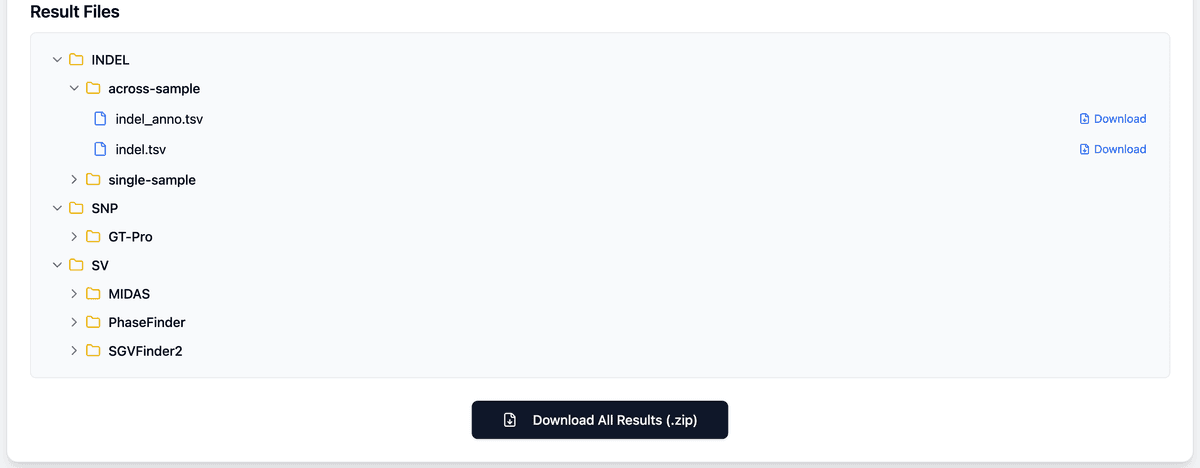
Once the analysis is complete, you can browse and download your result files.
How to Download
Browse and Select
Use the interactive file tree to navigate through the output directories. Click on any individual file to download it directly.
Download All as ZIP
To get all result files at once, click the "Download All (.zip)" button to download a compressed archive of the entire results folder.
Analysis & Visualization
This section focuses on exploring and interpreting your results. You’ll learn how to access summary statistics, navigate the genome browser, and use visualization tools to reveal patterns, correlations, and other biological insights.
Step 1: Upload Data
Upload your pre-computed variant data to generate a suite of interactive visualizations.
Supported Variant Types
This platform supports visualization for various variant types derived from your analysis.
General Workflow (INDEL example)
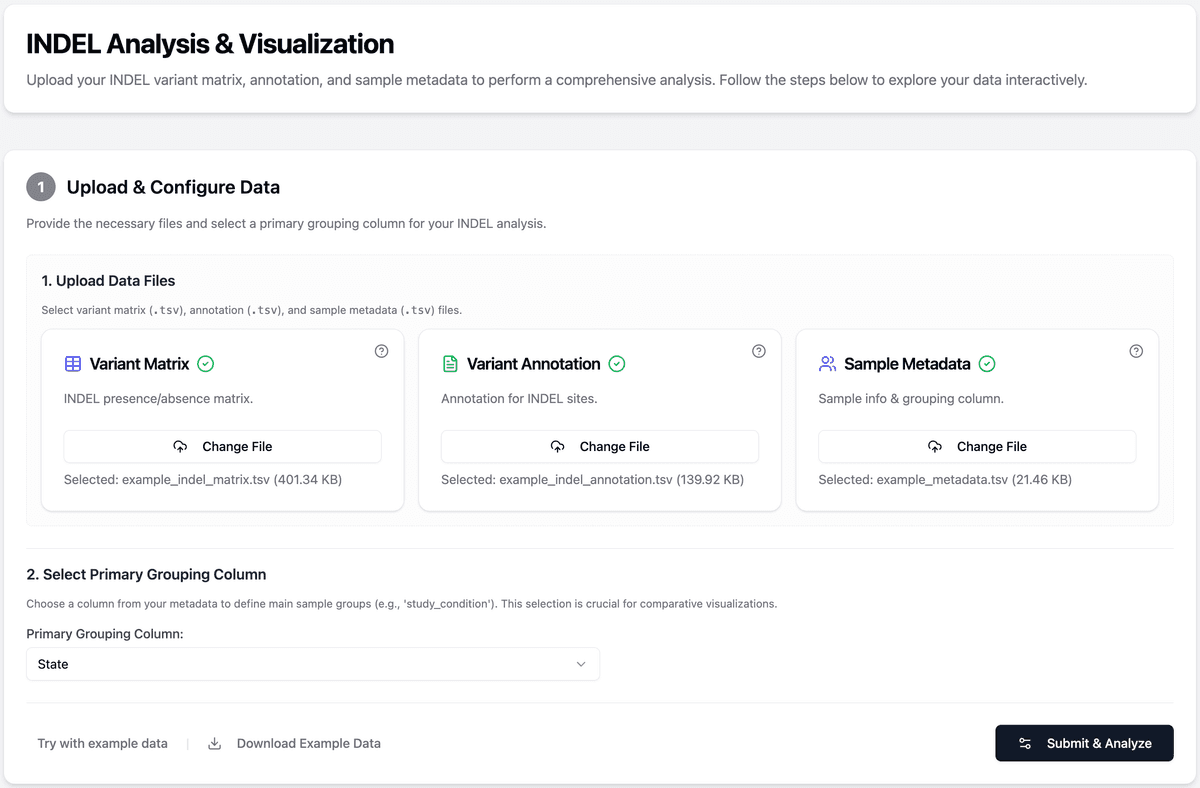
The process is similar for all variant types. The screenshot on the right shows the INDEL visualization upload as an example.
Select Variant Type
First, choose the variant type (e.g., INDEL) you wish to visualize.
Upload Required Files
Upload the specific files required for the selected variant type (see details below).
Configure & Submit
Select a primary grouping column from your metadata, then click the "Submit" button.
Required File Formats by Variant Type
All required files for visualization can be generated from the Variant Calling pipeline. Alternatively, you may upload your own data as long as it strictly adheres to the formats detailed below.
Step 2: Basic Statistics Overview
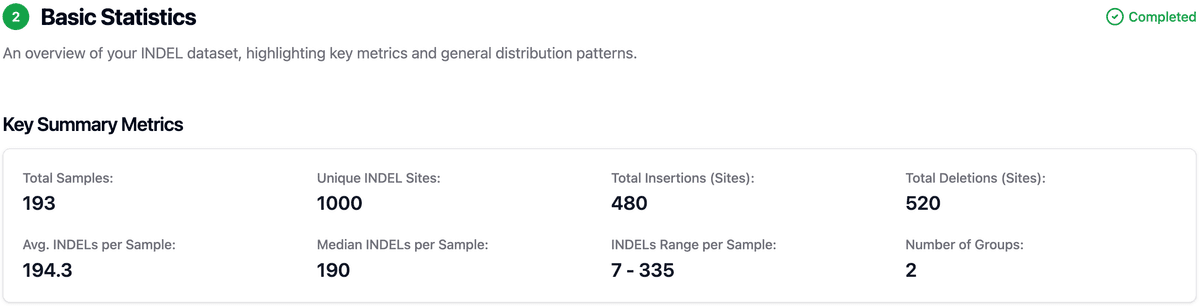
An interactive overview of your dataset, highlighting key metrics and general distribution patterns of the detected variants (e.g., INDELs).
Key Summary Metrics
This table provides a basic statistical summary, including totals for samples and unique variant sites, as well as counts for different variant types (e.g., insertions vs. deletions).
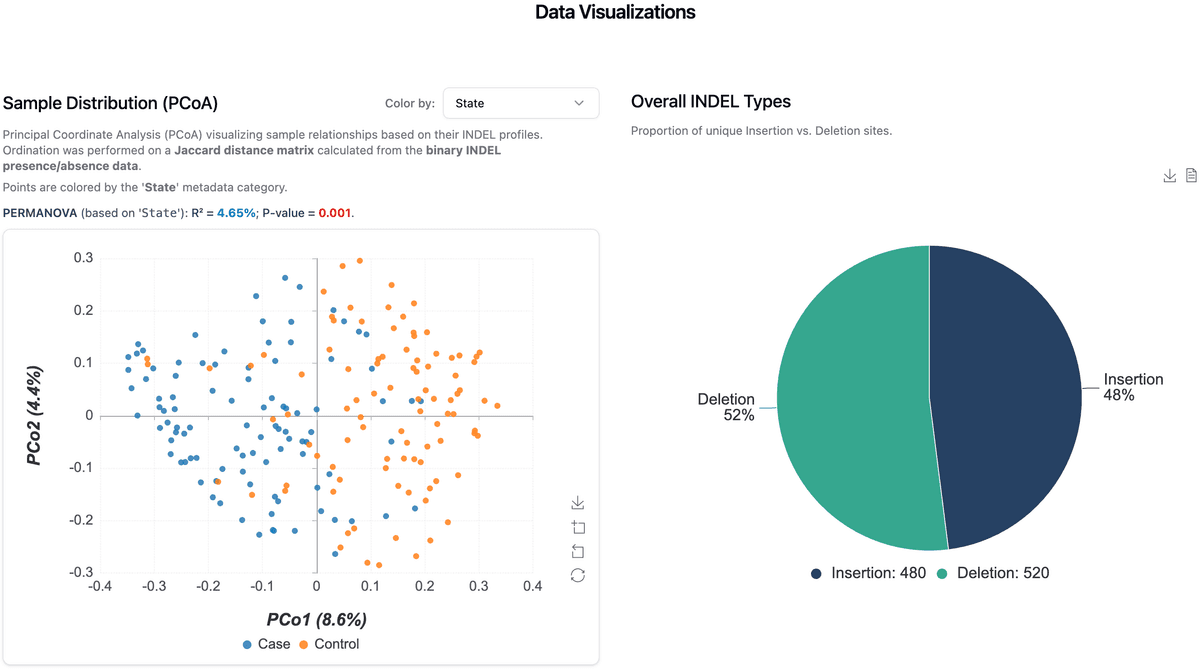
Sample & Type Distribution
The PCoA Plot visualizes sample relationships based on their overall variant profiles. The Pie Chart shows the global proportion of primary variant types (e.g., insertion vs. deletion sites).
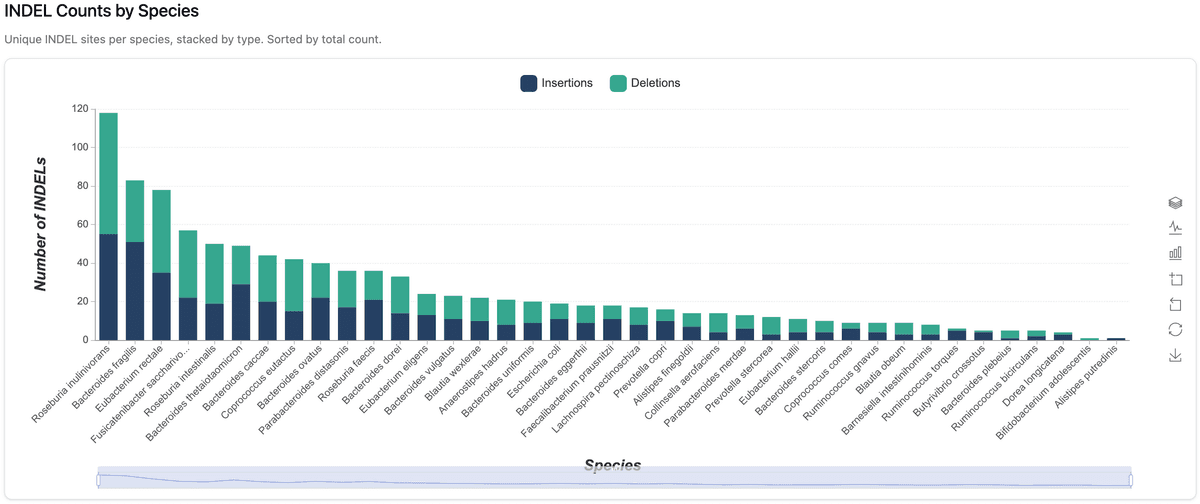
Variant Counts by Species
This stacked bar chart displays the number of unique variant sites identified within each species&apo; genome, often stacked by sub-type (e.g., insertions and deletions).
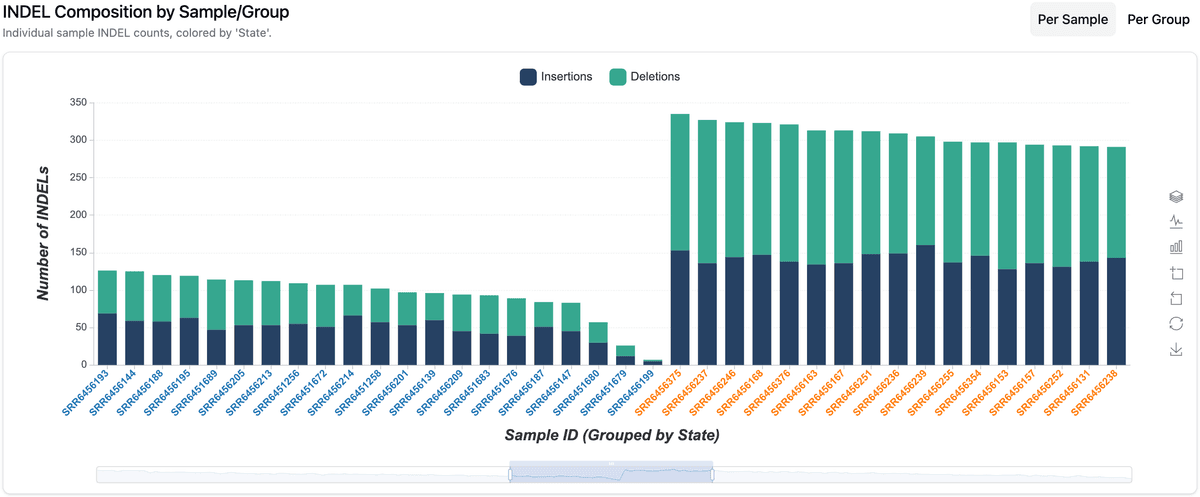
Variant Counts by Sample
This chart displays the variant count for each individual sample, typically colored by group and stacked by sub-type, sorted to reveal patterns.
Step 3: Interactive Genome Browser
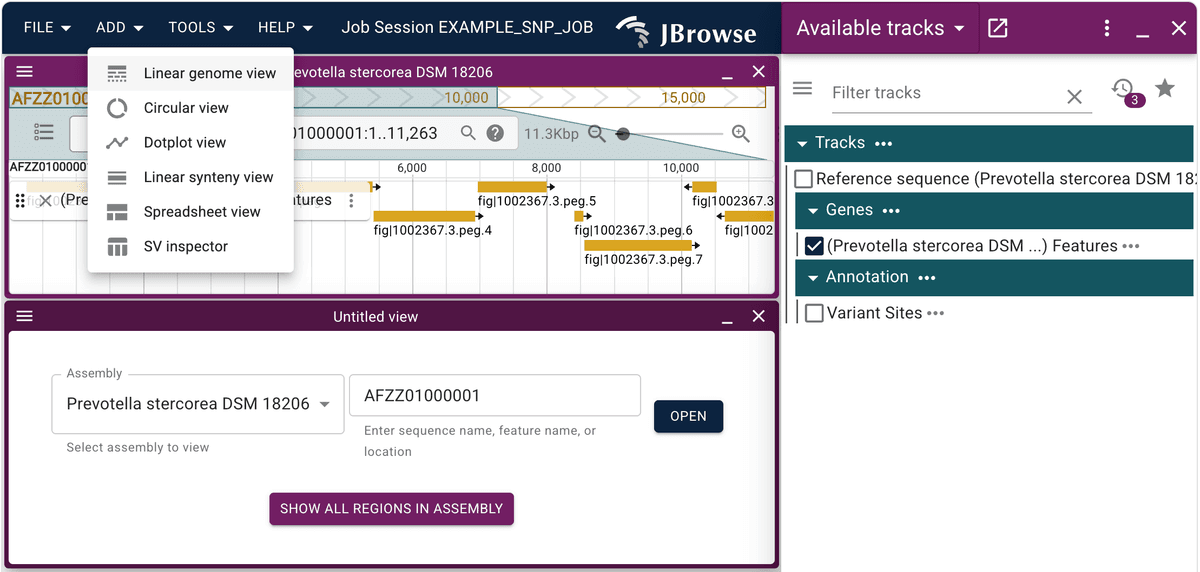
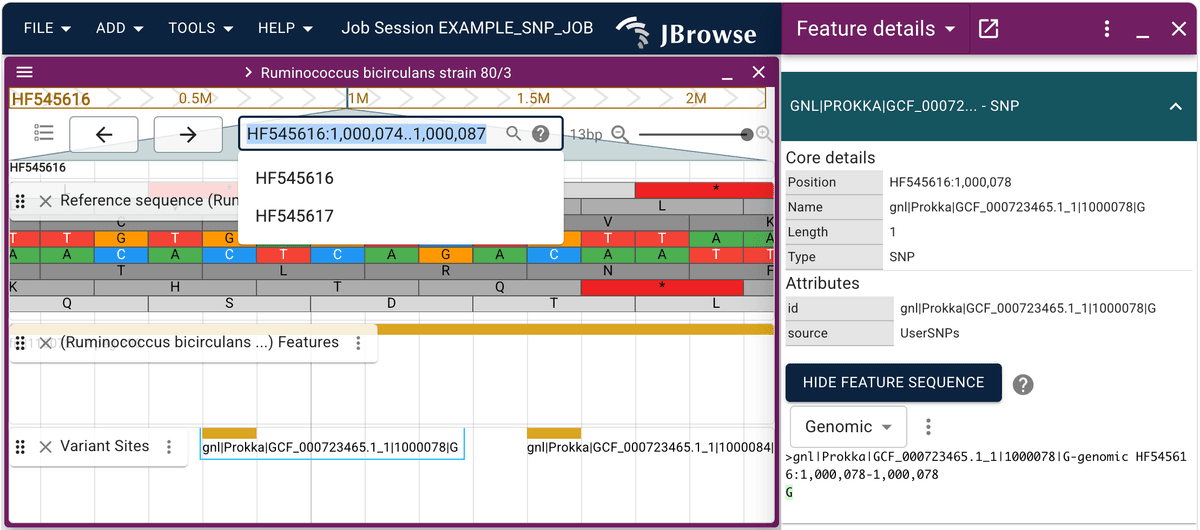
Explore the genomic context of your detected variants using the integrated JBrowse 2 viewer.
How to Navigate and Explore
Switch or Add Genomes
- To add a new view: Navigate to
File > Add > Linear genome viewin the top-left menu. - To close the current view: Click the '✕' icon in the top-right corner of the genome view tab.
Interpret the Tracks
- Reference Sequence: The foundational DNA sequence.
- Gene Annotations: Shows the locations of known genes and their features.
- Your Variant Sites: A dedicated track displaying the positions of your detected variants (e.g., SNPs, INDELs).
Interact and Get Details
Use your mouse to zoom and pan across the genome. Click on any feature—be it a gene or a variant—to open a detailed information panel.
Step 4: Association Analysis Heatmap
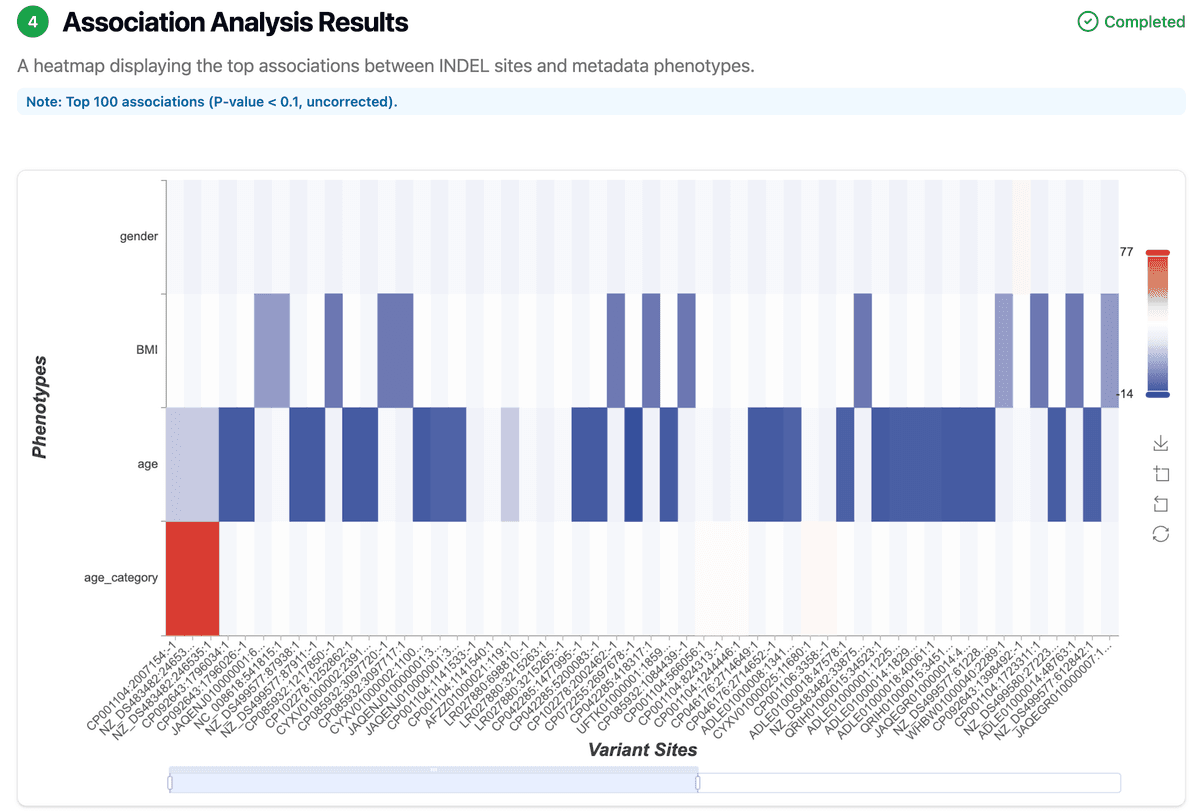
Visualize the association between variant sites and sample phenotypes in an interactive heatmap.
Interpreting the Heatmap
Visualizing Associations
The heatmap displays the top variant sites (e.g., top 50 or 100 by p-value) on one axis and the selected phenotypes on the other. Each cell represents the association strength between a variant and a phenotype.
Color Interpretation
The color of each cell represents the effect size of the association. Typically, a divergent color scale (e.g., red-white-blue) is used, where red indicates a positive correlation, blue indicates a negative correlation, and white indicates little to no association.
Step 5: Biomarker Discovery
Identify and evaluate key genetic markers associated with host traits using microSLAM-based association modeling and machine learning (Random Forest) approaches.
Note: This analysis module is available only within the Integrative Analysis workflow.
Step 1: Running microSLAM Association Analysis
Parameter Selection
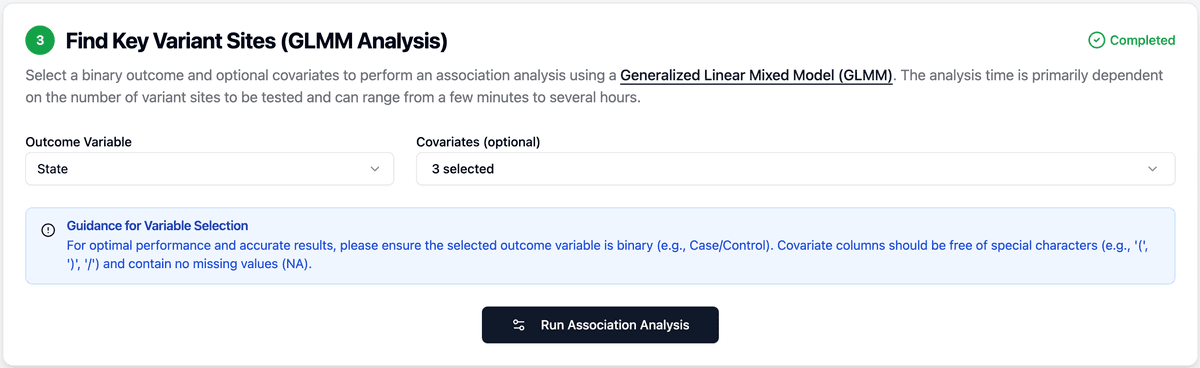
Select an outcome variable (e.g., disease status) and optional covariates to control confounding effects. microSLAM applies a mixed-effects model to test the association between gene presence/absence and host traits.
Note: Ensure variables contain no special characters or missing values. The outcome must be binary (e.g., Case/Control).
Step 2: Visualizing Association Results
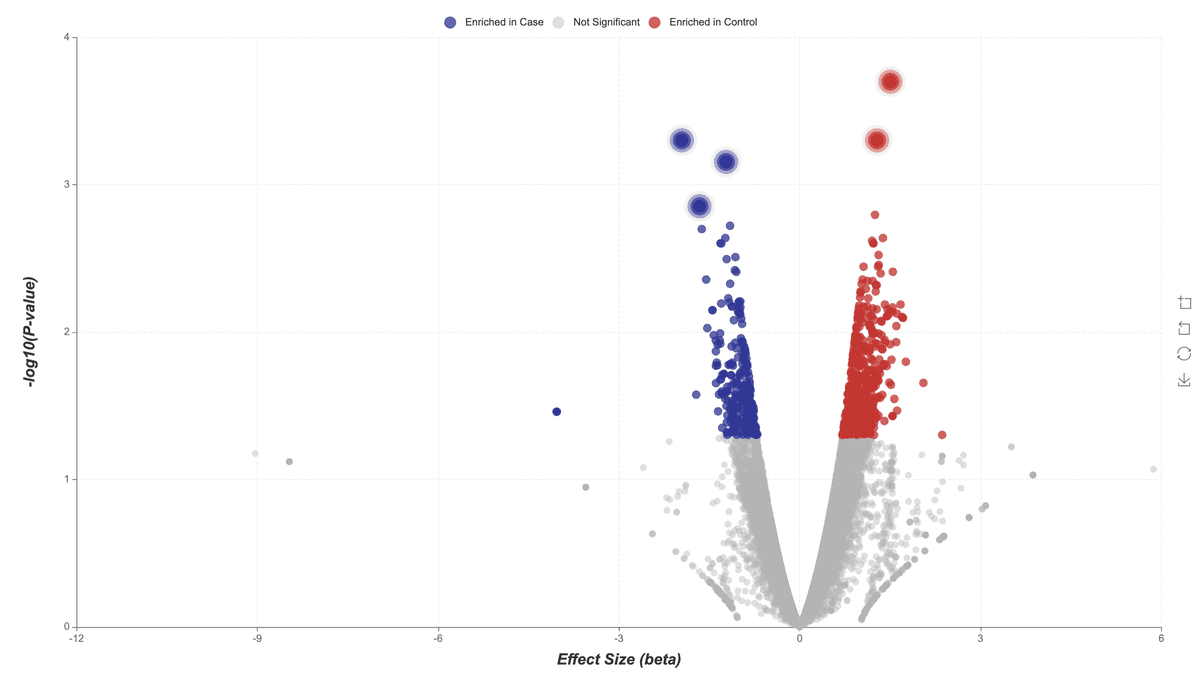
Volcano Plot Interpretation
The volcano plot summarizes variant-trait associations across strains. Each point represents a variant site, plotted by effect size (x-axis) and –log₁₀(p-value) (y-axis). Sites with strong positive or negative associations appear toward the edges, highlighting significant microbial biomarkers.
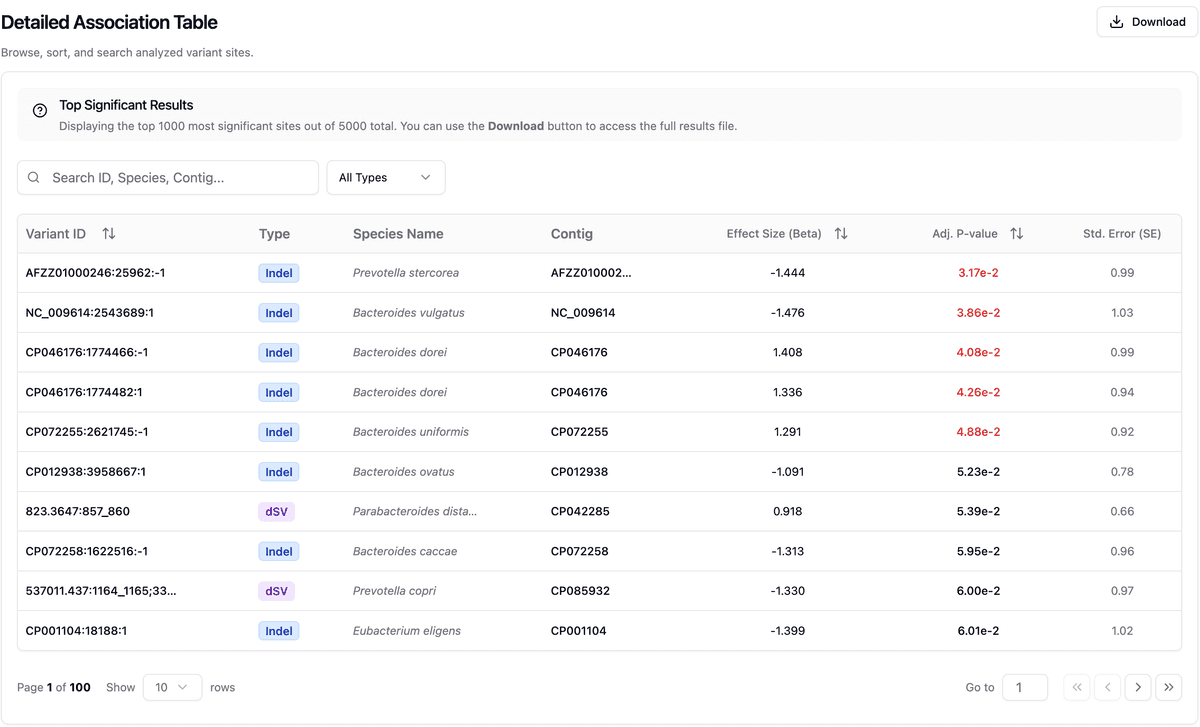
Step 3: Reviewing Top Association Results
Result Table Overview
A ranked table lists the top 1,000 variant-level associations, including Effect Size (Beta), P-values, and Std. Error. These results enable quick prioritization of functional features for downstream evaluation.
Step 4: Biomarker Modeling & Interpretation
Feature Selection
Select the candidate feature set for Boruta-based biomarker discovery. You can restrict the analysis to statistically significant sites (Significant Candidates, P < 0.05; auto-scaled between 20–5,000 features) or broaden the search to the Top 5,000 ranked sites for more extensive screening.
Model Evaluation (ROC Curve)
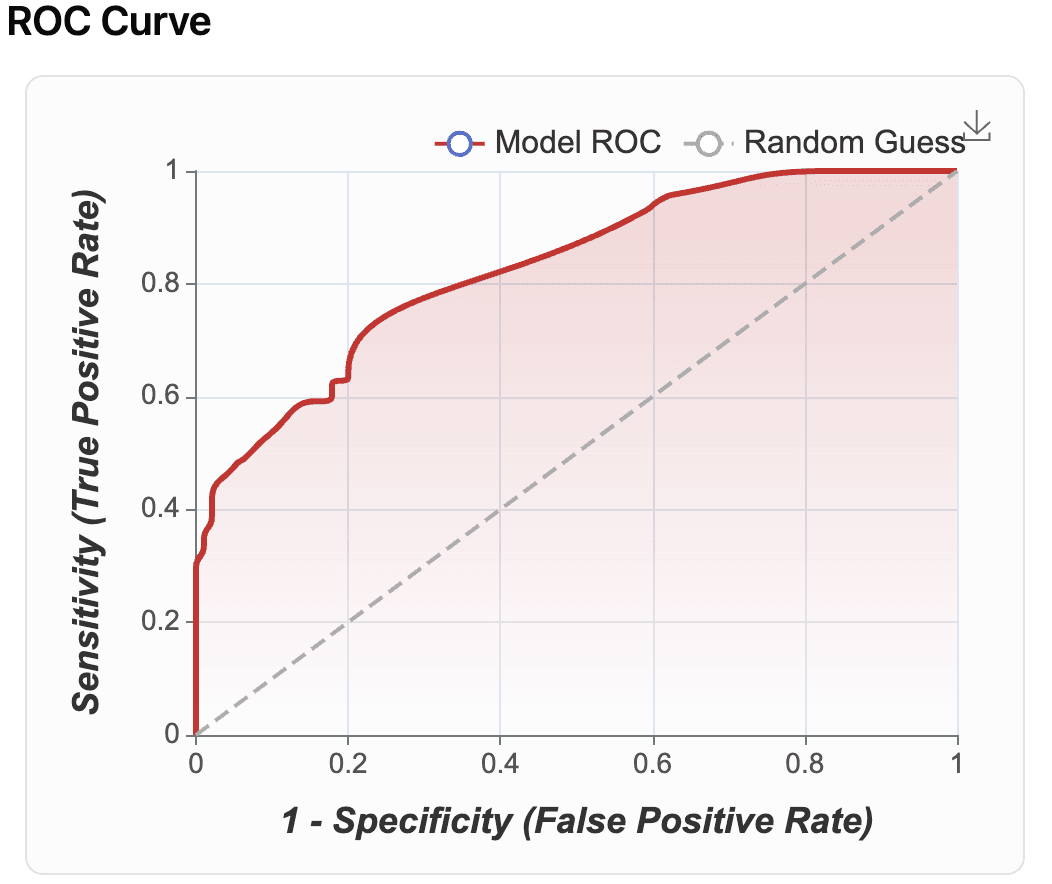
Assess the discriminative power of selected features using a Random Forest classifier. The ROC curve shows the trade-off between sensitivity and specificity, with the AUC indicating overall model accuracy.
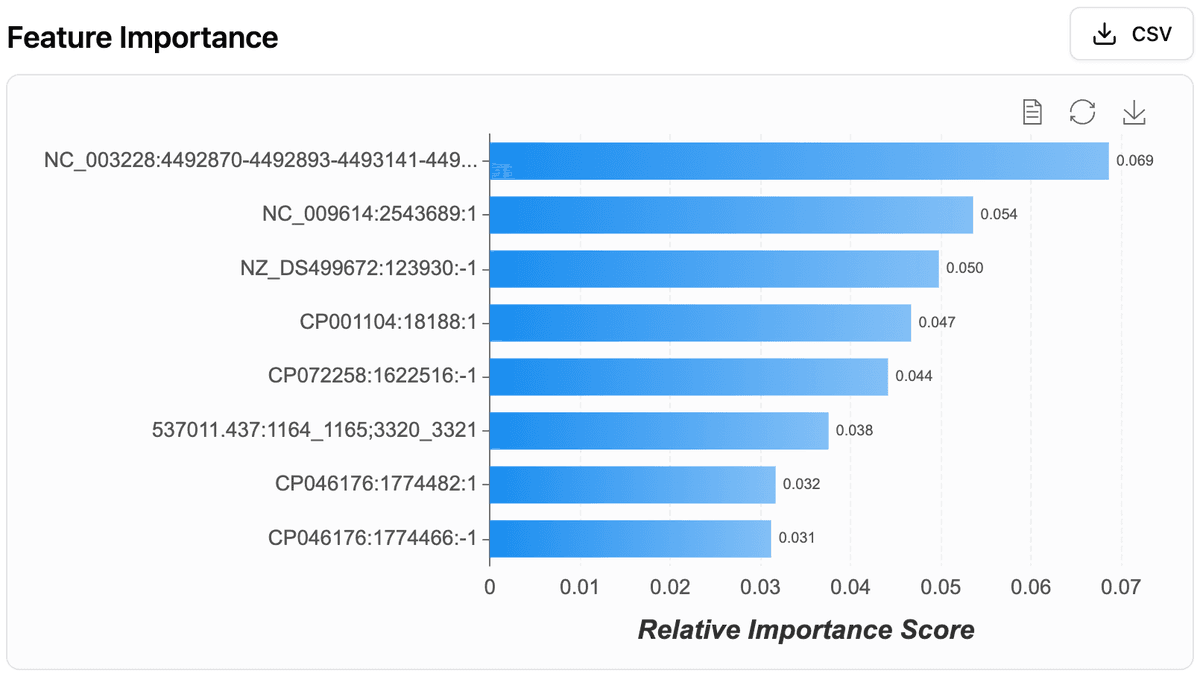
Feature Importance (SHAP Analysis)
SHAP (SHapley Additive exPlanations) analysis quantifies each feature’s contribution to prediction outcomes, offering interpretability and biological insight into the underlying mechanisms of disease association.